Desktop, Folder and Web icons are a nice way to personalize your computer as well as handy little design tools for your site or blog. I love using them for a variety of things , not just for my computer or site, but they are also good as IM or buddy icons as well as the perfect size for an avatar. The following are some of the more unique ones that I have seen.


Harmonia Pastelis Icons- Are a very cute set from Rain Drop Memory. They are actually grouped into three folders.. Application Icons, Folder Icons and Regular Icons. Essentially making it easier for the user to know which icons are for what. BONUS, they have created several matching wallpapers (the cloud pic is just one of them!)
ICON DOWNLOAD LINK HEREWALLPAPER DOWNLOAD LINK HERE_____________________________________

Handy Icons- Are a free hand drawn social icon set from
Janko At Warp Speed. They come in 4 sizes and have a nice artistic feel to them. He also has another hand drawn set , but we think this one is the best.
DOWNLOAD LINK HERE_____________________________________
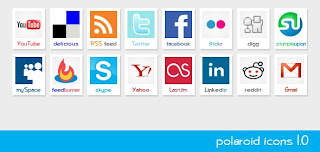
Polaroid Icon- are social icon sets that look like a Polaroid snap shot from
webtoolkit4me.
DOWNLOAD LINK HERE_____________________________________

Glossy Social- are social icon sets that look like iphone applications from the same developer.
DOWNLOAD LINK HERE_____________________________________

Sketchy Icons- are also hand drawn social icons by Snap2objects. The only downside is that they for the most popular sites.
DOWNLOAD LINK HERE_____________________________________
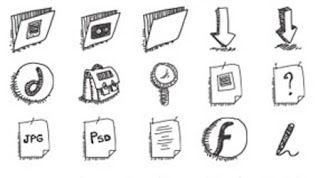
Mathilde Sketchy Icons- is a lengthy(more than pic) social icon set by a designer called Mathilde
DOWNLOAD LINK HERE(Once there just hit "Download" button on left sidebar)
_____________________________________
Also in a previous post we put a Free Twitter Button and Badge Site for those of you who need or want new Twitter buttons for your site. The html code is even done for you already, just copy and past.
The following are instructions for Windows Users on changing icons.
{INSTRUCTIONS}- Click on link and "save to your computer"
- Once download complete, open compressed zip file with program of your choice.
- For Windows =Click on file and then click on "Extract File" for Mac there is Free Yem Zip program is you don't already have compression software
- Once the file is uncompressed, save to desired location. I suggest making a folder called "Icons" to find easily, just in case you want to change them.
- Then just upload them directly from computer to site or to a picture hosting site such as Flikr or Photo Bucket, then put in the url/html coding for your site.
*If you want to use these for your site, like the twitter, facebook or other social media icons, just save them and hyperlink them to the appropriate url on your page*{TO CHANGE DEFAULT DESKTOP ICONS }- Click Start, click Control Panel, click Appearance and Themes, and under Pick a task, click Change the desktop background
- On the Desktop tab of the Display Properties dialog box, click Customize Desktop
- In the Desktop Items dialog box, select the icon you want to change and click Change Icon. The Change Icon dialog box opens, which shows all icons in the currently selected file. In it, you can specify which icons are shown on the desktop by default
- To select from icons not currently displayed, click Browse, and in the Change Icon dialog box, navigate to the icons you downloaded, select the icon you want to use, click Open, and then click OK
- In the Desktop Items dialog box, select the next icon you want to change and repeat steps 3–4
- When you're finished changing the icons listed here, click OK, and in the Desktop Properties dialog box, click OK to apply the changes
{TO CHANGE COMPUTER FOLDER ICONS}
- Right + Click the folder icon you want to change and choose Properties
- The Folder Properties window will now pop-open. Choose the tab Customize
- Click on Change Icon to open the window for changing the folder icon
- Here you have a choice to either Browse to a folder containing any .ico files or Select an Icon from the List shown containing default Windows icons
- Once you have selected an icon as described above click OK
- Then click on Apply
{TO CHANGE COMPUTER SHORTCUT ICONS}
- Right-click the shortcut you want to customize, and then click Properties
- On the Shortcut tab, click Change Icon
- In the Change Icon dialog box, click Browse, navigate to the new icon you want to use, select it, and then click Open
- Click OK, and then OK again to apply the change
IF THERE IS ANY TIME THAT YOU WANT TO RESTORE THE DEFAULT ICONS, JUST REPEAT STEPS AND HIT THE BUTTON "RESTORE DEFAULT" AND YOU WILL GO BACK TO THE FACTORY ICONS.
*IF YOU DO HAVE TROUBLE INSTALLING OR USING ICONS, LEAVE COMMENT AND WILL BE HAPPY TO ANSWER QUESTIONS*
*for personal use only, not for commercial use*

.png)

 10:08 AM
 0 comments
 10:08 AM
 Blogger.com is one of the most popular blogging platforms on the Internet, yet if you have a blog with them you are often stuck with the default Blogger.com favicon. Hard to brand your blog with your own personal touch when you have the Blogger.com favicon on the address bar. If people bookmark your blog they won’t see your favicon and might quickly forget about your website. There is no reason why you can’t change the favicon on your Blogger.com blog to one of your own design. There are a couple of good sites for favicon generator and etc. After your have your favicon, you just need to follow these easy steps and soon your Blogger.com blog will sport your great new custom made favicon.